
Dressmaker Steam Deck controls
The game starts on Steam’s keyboard-and-mouse template, and that template has no button for zoom. Put middle click on a back button, Space on A, W A S D on the D-pad, and turn on Sewing Assist. That is most of the job.
On a Steam Deck today
Playable once you map a few buttons
It runs smoothly, and Steam rates it Playable. There is no controller support yet, so the buttons are yours to set; proper controller support is being looked into.
A button map to copy
A suggested layout, not an official one. Rows marked already set work in the template the game launches with; add the rest yourself.
| To | Keyboard / mouse | Deck button |
|---|---|---|
| Click, pick up, cut, drag | Left click | R2 already set |
| Remove trim or an accessory | Right click | L2 already set |
| Spin the mannequin when zoomed in, turn a piece on the fabric | Scroll wheel (Page Up / Down) | L1 / R1 already set |
| Move the cursor | Mouse | Right trackpad, or right stick already set |
| Zoom to a spot, and back out | Middle click or Z | R4 (back button) add |
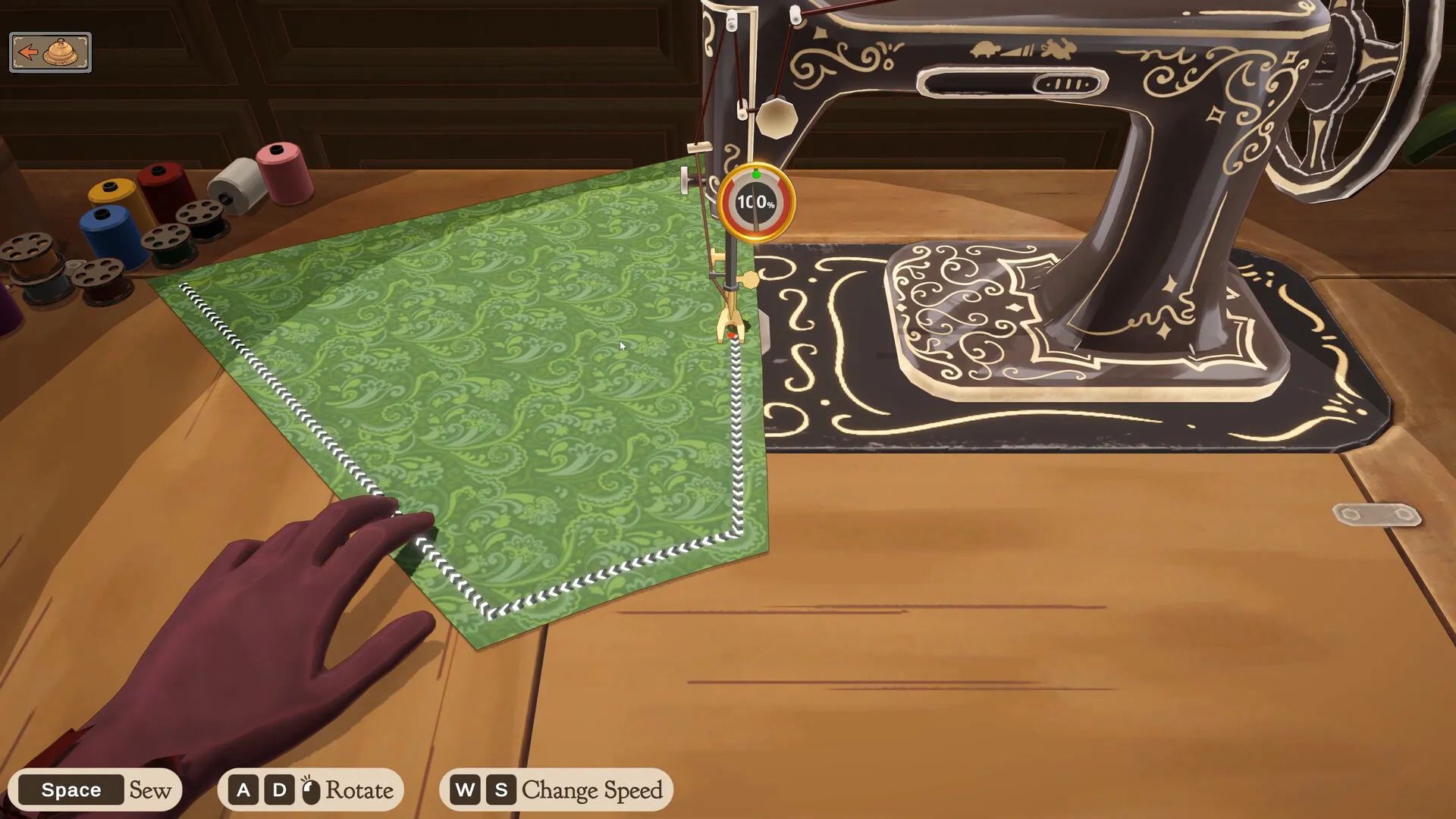
| Sew | Space | A add |
| Turn the fabric under the needle | A / D | D-pad left / right add |
| Sewing speed | W / S | D-pad up / down add |
| Start the seam again | R | Y add |
| Rotate an accessory | Q / E | Left stick left / right add |
| Place several in a row | Shift | Left stick click add |
| Options menu | Esc | Menu button add |
The game only ever shows keyboard and mouse prompts, so keep this table open until the buttons stick. What each key does in the game is on the full controls list.
Setting the buttons
- Open the layout. Select Dressmaker in your Library and press the controller icon next to Play.
- Start from a shared layout, or edit the default. Community Layouts already has Dressmaker layouts for the Deck. Otherwise edit the keyboard-and-mouse template the game picked.
- Give zoom a button first. Middle click on R4 is comfortable, since the zoom follows the cursor and your right thumb stays on the trackpad. The left trackpad works for middle click too.
- Add the sewing keys. Space on A, R on Y, W A S D on the D-pad, then Q, E and Shift on the left stick for accessories.
- Raise the trackpad sensitivity. Somewhere around 300 to 400% on the right trackpad, with the right stick left slower for small moves.
- Turn on Sewing Assist in the game’s settings. Sewing without it on a Deck is hard work; what it changes is on getting 100% quality.
Easier on your thumbs
- Tap the screen
The Deck is a touchscreen. Tap to walk to another part of the shop or to pick a fabric or accessory from a list, and save the trackpad for fine work.
- Line up grain with L1 and R1
On the cutting table, L1 and R1 turn the piece you are holding. Try ten presses for 100% grain; if a piece sits at 98%, one more press may snap it to 100%. More on grain and gradients.
- Zoom by where the cursor is
Zoom goes in three steps and aims at the cursor. Press it again on the same spot to go closer, or with the cursor on empty space to come back out.
- Take trim off with L2
L2 is right click, which removes a placed accessory or trim. Placing lace is the fiddliest job on a Deck, so zoom in first; the lace keys are on lace trim and accessories.
Deck snags worth knowing
- A removed piece dragged back to the inventory can vanish, zoomed in or out. Restart the game and it is back in your inventory.
- At full view, L1 and R1 spin the mannequin the opposite way to the D-pad. There is no way to flip one without also flipping the sewing keys or the fabric list scroll, so it is a matter of getting used to it.
- Steam Cloud saves do not carry over between a Deck and a Mac, so pick one for a save. See saves and crashes.
- Docked with a keyboard and mouse, it plays the same as on a PC.
Other handhelds and controllers
Prefer a pad with a trackpad for fine cursor work. A Steam Controller or a PlayStation pad can work with a remapped layout; with sticks alone, cutting and sewing are much harder to do precisely. On a ROG Ally, Sewing Assist and the stick as a mouse get you through commissions, but zooming and placing trim stay hard. On a PlayStation pad, try left click on L2 so one hand has the trackpad and the other clicks.
Official controller support is planned, with no date; watch patch notes. Which other platforms are coming is on platforms and Steam Deck.